iKeePass Chrome Extension
The iKeePass Chrome Extension seamlessly connects your browser with the iKeePass macOS app. Passwords are automatically filled into login forms – no manual copying needed.
Features at a Glance
| Feature | Description |
|---|---|
| 🔑 AutoFill | Automatically fill login forms |
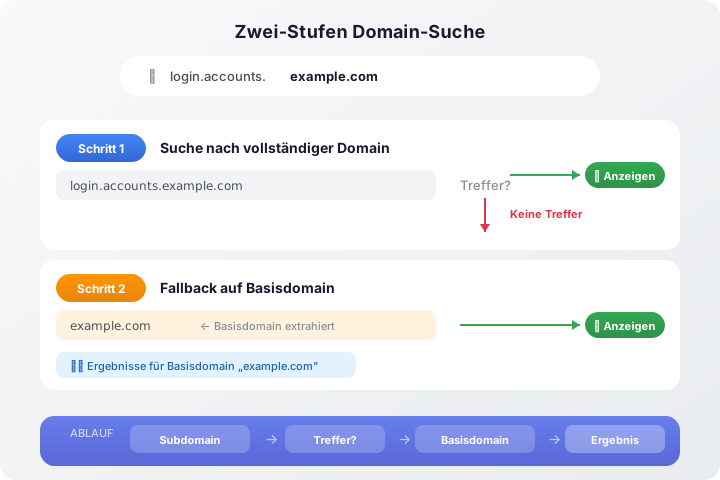
| 🔍 Smart Search | Two-step domain search (subdomain → base domain) |
| 🔐 HTTP Basic Auth | Automatically intercept and fill auth dialogs |
| 💾 Save Credentials | Add new login data directly to your database |
| 🛡️ 100% Local | No cloud – all data stays on your Mac |
| ⌨️ Keyboard Shortcuts | Enter to fill, Escape to close |
| 🌐 Chromium Compatible | Chrome, Edge, Brave, Helium, Vivaldi, Opera |
Auto-Fill
The core feature: An inline dropdown appears directly in the login field as soon as you click on it.
- Automatic detection of username, email and password fields
- Two-step search: First subdomain, then base domain as fallback
- Dynamic forms detected (Single Page Apps, AJAX pages)
- Apple-style UI with Shadow DOM – isolated from website CSS
Two-Step Domain Search
HTTP Basic Auth
For websites with HTTP Basic Authentication, the standard Chrome dialog is replaced by a custom iKeePass auth dialog:
- Stored credentials are automatically suggested
- New credentials can be saved directly to iKeePass via a checkbox
- Loop protection prevents infinite login attempts with wrong credentials
Popup Search
Via the iKeePass icon in the Chrome toolbar:
- Click the icon
- Enter a search term
- Select the desired entry
- Password is filled on the current page
The status display shows you at all times whether the connection to the iKeePass app is active.
Architecture
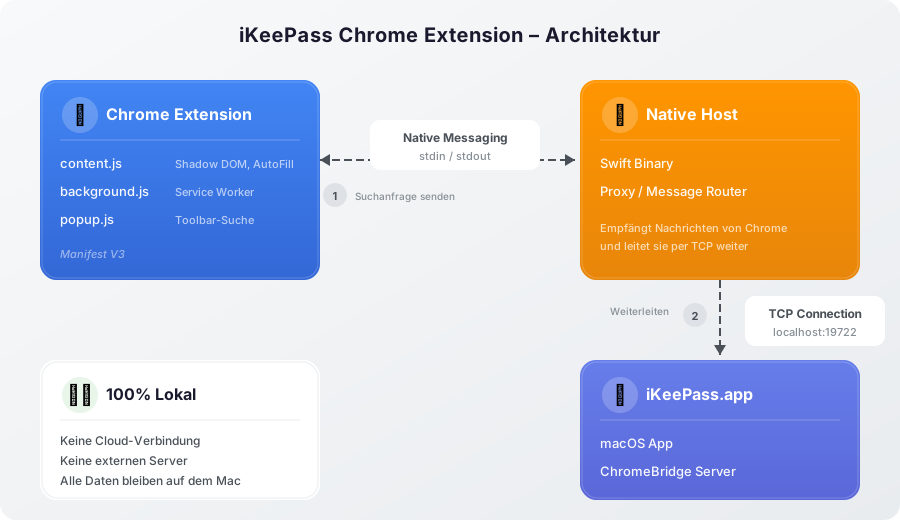
The extension communicates exclusively locally with the iKeePass macOS app:
Communication Flow
- Chrome Extension detects a login form on the website
- Content Script sends search request via the Background Service Worker
- Background.js forwards the request via Native Messaging (stdin/stdout) to the Native Host
- Native Host (Swift binary) connects via TCP to the iKeePass macOS app
- iKeePass App searches the opened database and returns matching entries
- Chrome Extension displays the results in the inline dropdown
Security
| Aspect | Details |
|---|---|
| Communication | Local only via TCP localhost:19722 |
| Protocol | Chrome Native Messaging standard |
| UI Isolation | Shadow DOM prevents CSS conflicts |
| Tracking | No tracking – no data leaves your Mac |
| Source Code | Fully inspectable and auditable |
Technical Details
Chrome Manifest V3
The extension uses the modern Manifest V3 format:
| Component | Technology |
|---|---|
| Service Worker | background.js (Event-driven) |
| Content Script | content.js (Shadow DOM) |
| Popup | popup.html/js/css |
| Version | 1.0.1 |
Permissions
| Permission | Purpose |
|---|---|
nativeMessaging |
Communication with the Native Host |
activeTab |
Access to active tab for AutoFill |
storage |
Store local settings |
webRequest |
Intercept HTTP Basic Auth |
scripting |
Dynamically inject content scripts |
Requirements
| Requirement | Details |
|---|---|
| Browser | Google Chrome or Chromium-based (Edge, Brave, Helium, etc.) |
| macOS | 14.0 (Sonoma) or newer |
| iKeePass App | Must be open and unlocked |
| Chrome Bridge | Enable in iKeePass under Settings → Security |
Installation
1. Install Chrome Extension
The extension is available via the Chrome Web Store. It will be available there shortly.
2. Enable Chrome Bridge in iKeePass
Open the iKeePass macOS app and navigate to Settings → Security. Enable the Chrome Bridge toggle.
FAQ
Why is no dropdown appearing?
- Check that the iKeePass app is open and unlocked
- Check that Chrome Bridge is enabled in settings
Does the extension work with other Chromium browsers?
Yes, the extension is compatible with all Chromium-based browsers such as Microsoft Edge, Brave, Helium, Vivaldi and Opera.
Can I use the extension with the iOS app?
No, the Chrome Extension requires the macOS app as a backend. On iOS, use the native AutoFill feature instead.